Download the latest Scrapio Google Maps Scraper version from our website.
Download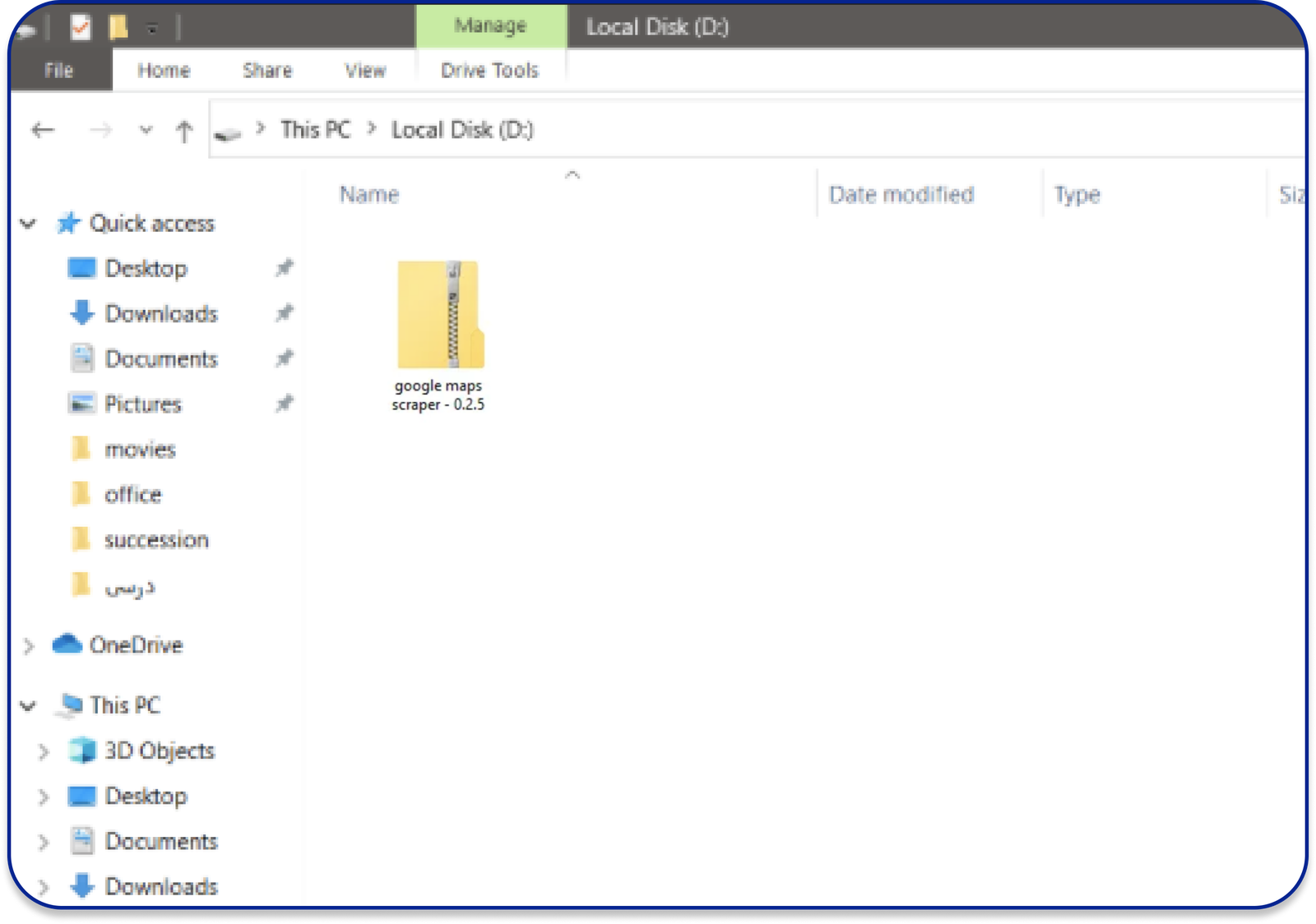
After downloading the extension, it will be in the form of a zip file. Please unzip the file.
To unzip the entire folder, right-click and then select Extract All.
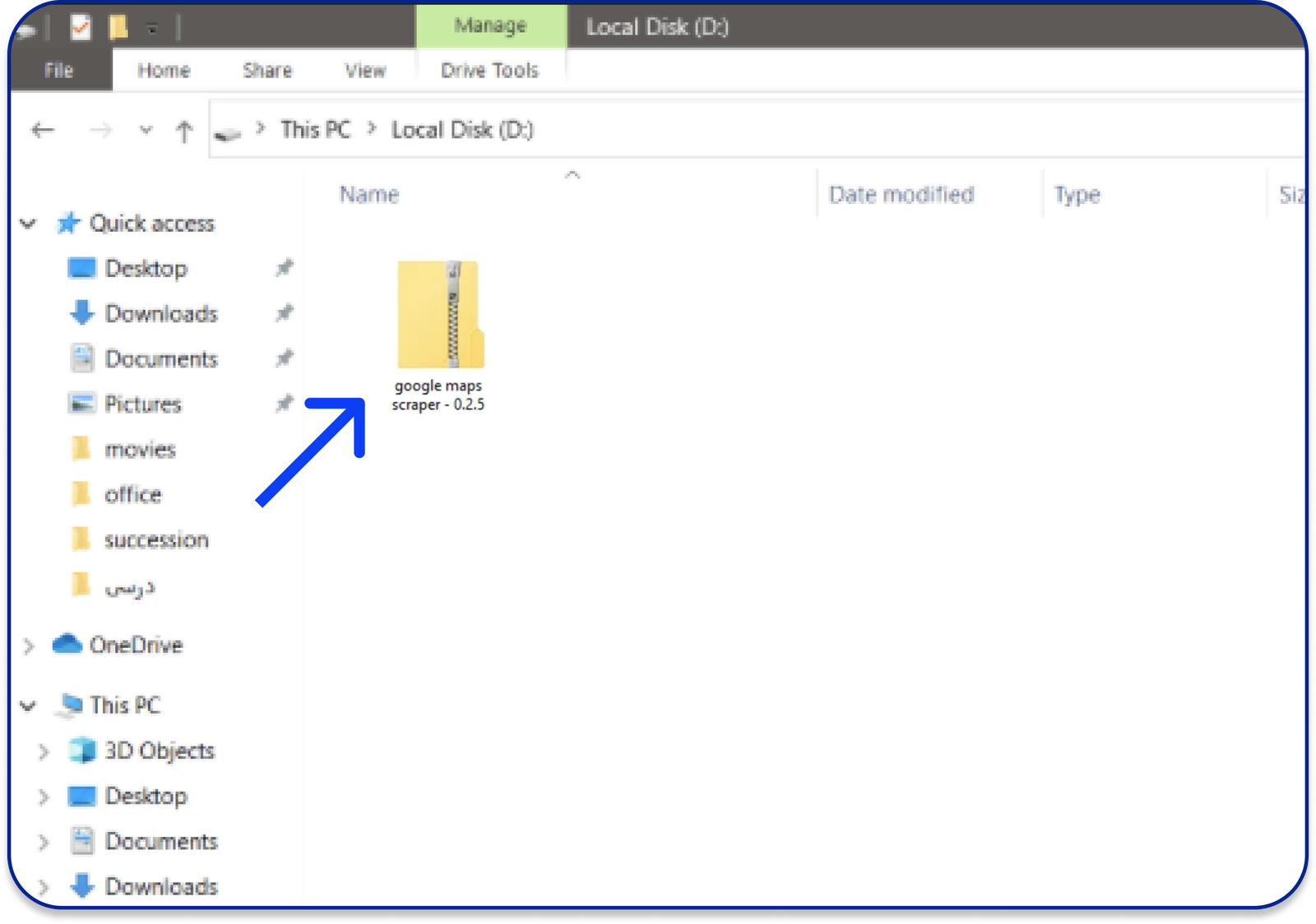
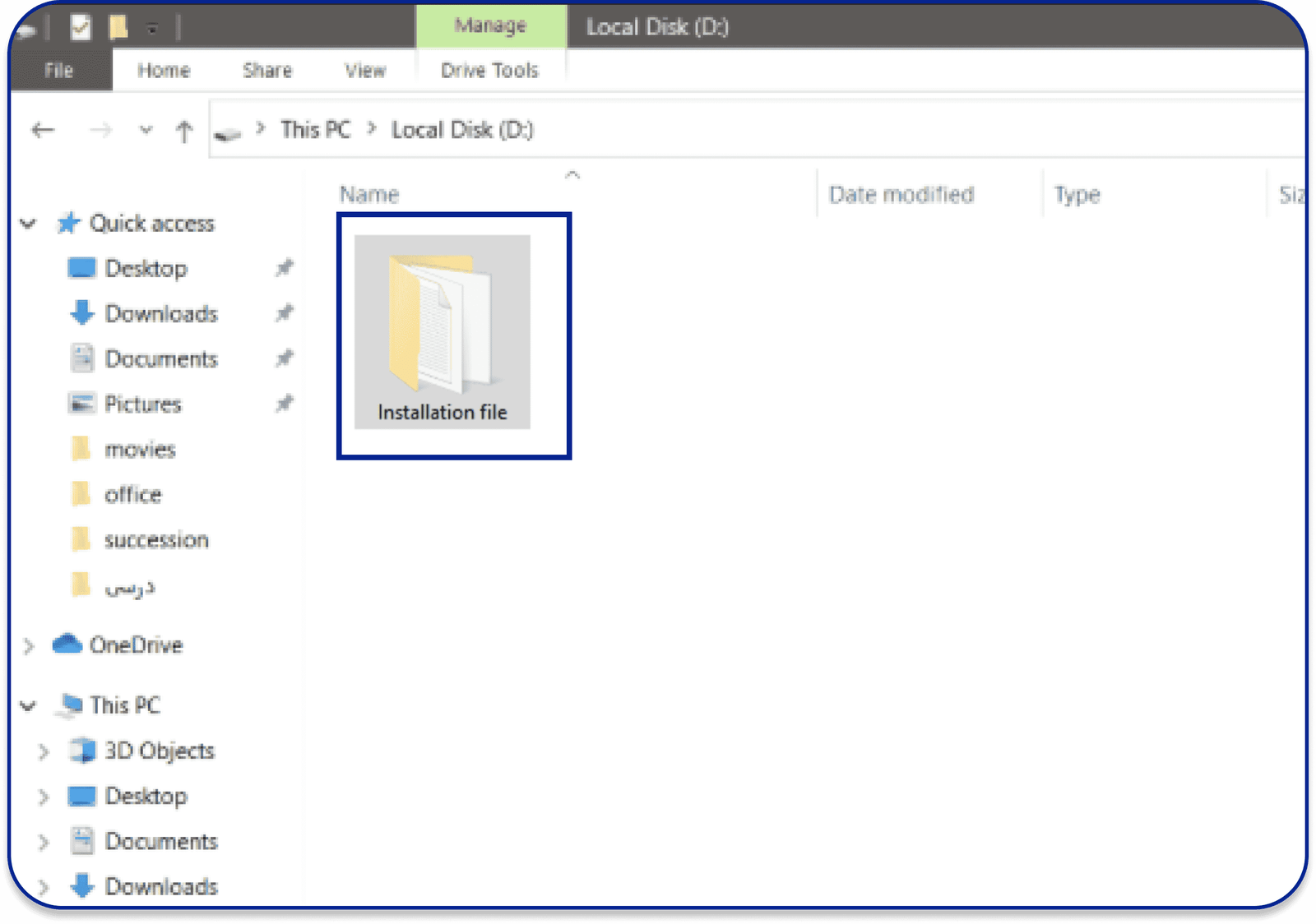
Open the unzip folder called google maps scraper – 3.3.2 then continue until you reach the
“Installation File” folder.
IMPORTANT: Please do not delete or move the installation folder from your computer, as it
will result in the removal of the extension from the Chrome browser.
It is better to place the installation folder in your desired location on your computer
before installing the tool to Chrome
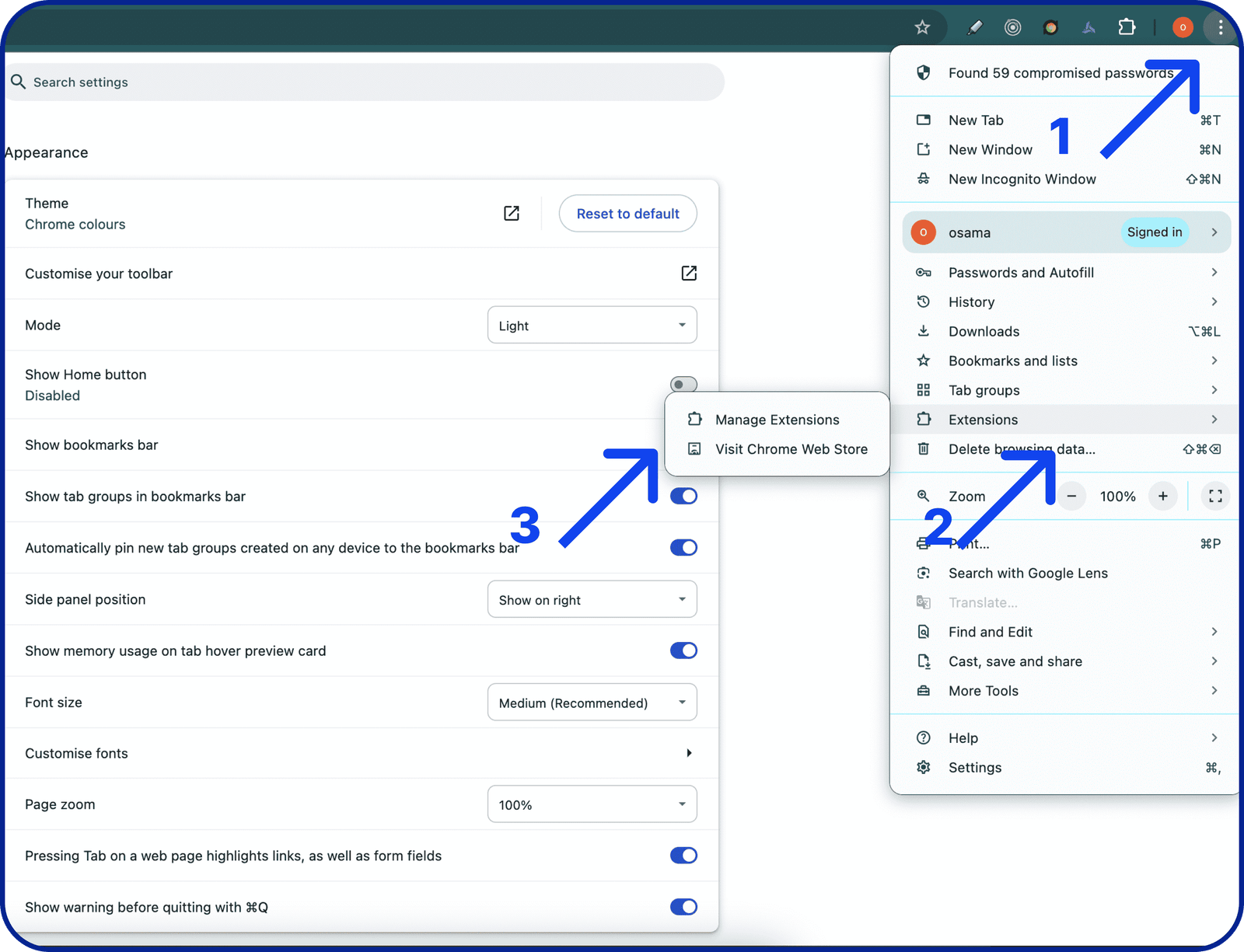
In your Chrome, go to: chrome://extensions/
Ellipsis ➜ Extensions ➜ Manage Extensions
Drag the Installation File folder to the extension page.
Or Drag the Installation File folder to the extension page.
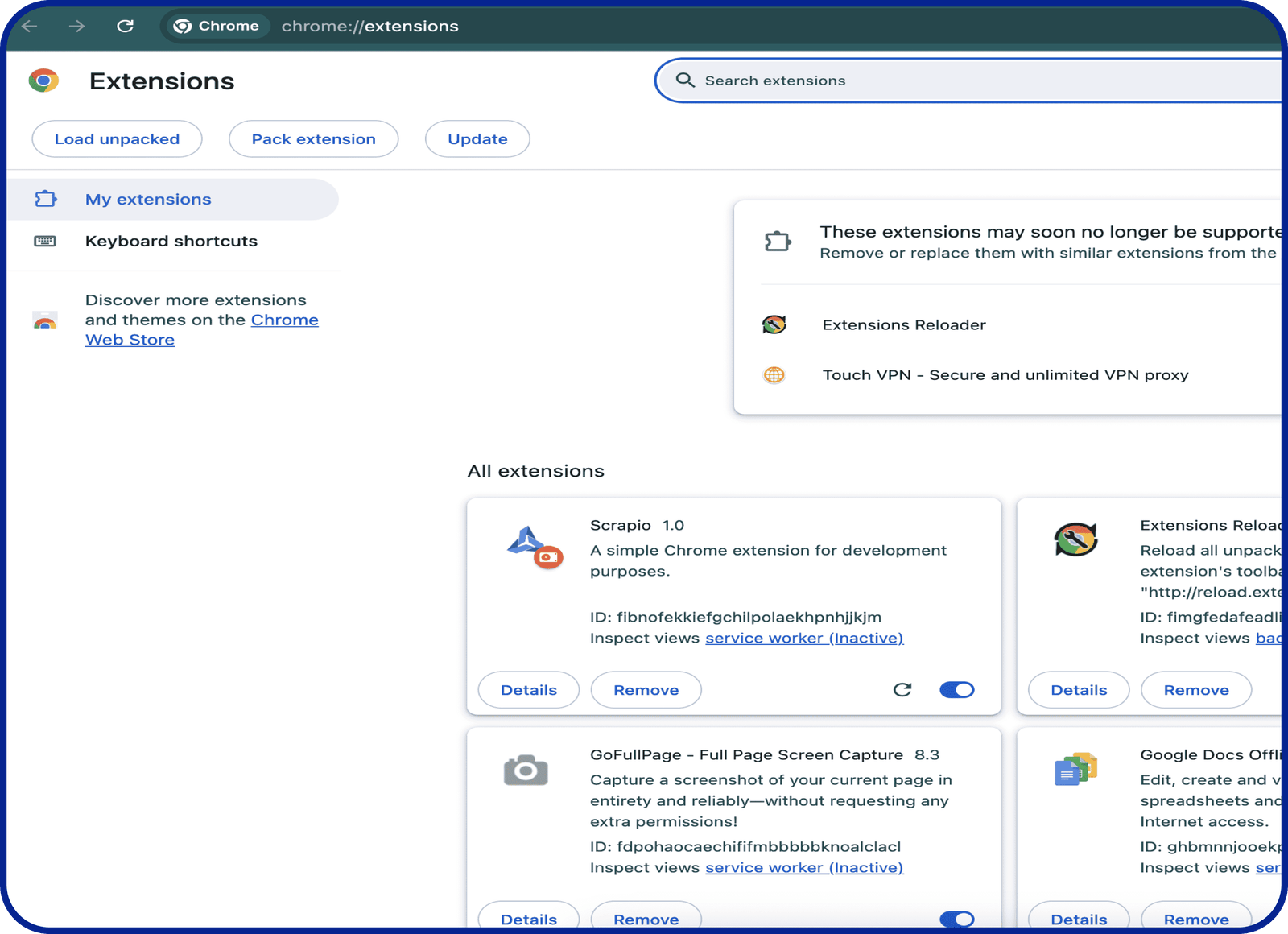
Install the extensions and validate your license and start scraping

This Google Maps Scraper extension allows you to quickly extract location data, addresses, phone numbers, and other key information from Google Maps listings. Streamline your data collection process and boost your productivity with this powerful tool.